In this article:
- What's the use of a RSS/ATOM feed?
- What do I need to use this block?
- How does it work?
- How to use the RSS/ATOM feed block?
- During my mailing, the content differs from the one generated in my template...why?
- My mailing with my RSS feed was not sent...why? What do I need to do?
- What happens if I have less news in my feed or category than the number I chose in my block properties?
What's the use of a RSS/ATOM feed block?
You can use the RSS(Really Simple Syndication)/ATOM feed block to automatically add your most recent news or updates published on your website or blog to your templates.
What do I need to use this block?
To use this block, you need an RSS/Atom feed on your website or blog, along with its URL. You can also publish news from a specific category of your feed, in which case you’ll need that category’s name. Make sure the feed address is valid and that the feed will contain news items at the time your mailing is scheduled to go out. If the feed is empty or unavailable at that moment, what happens depends on the option you chose in step 1 of the mailing setup (see What happens if my feed is empty or unavailable at sending time?). By default, the mailing is not sent.
How does it work?
The content of the RSS/Atom block is dynamic. When your mailing is scheduled to go out, the system checks the RSS/Atom feed and updates your template with the latest news from your website, based on the settings you chose for the block: the maximum number of news items, the categories and, if you turned it on, the publication date filter.
In a recurring mailing, this check happens every time the mailing is sent. Your email content changes from one mailing to the next without you having to edit your template.
Learn more about recurring mailings >
How to use the RSS/ATOM feed block?
The RSS/ATOM feed block can be added to any templates created from our predrawn or basic templates (this option is not available for templates built in our HTML mode). Here is the procedure to follow to add this block to your template:
- Go to the menu and select an existing template from the list, or create a new one by clicking the + Create a template button.
- On the right of the template displayed, open the Add a block section by clicking the arrow or the name of the section.
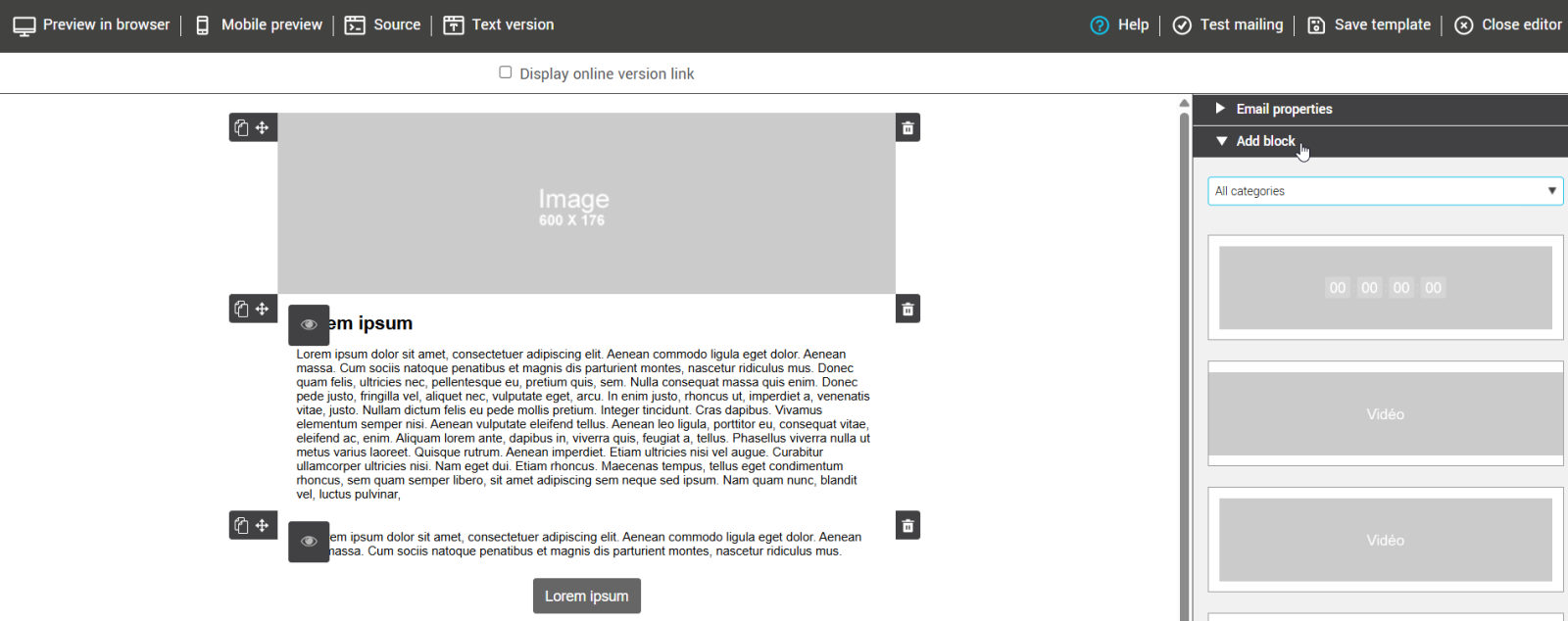
- Under Add a block, open the drop-down list All categories and select RSS/ATOM Feed from the list.
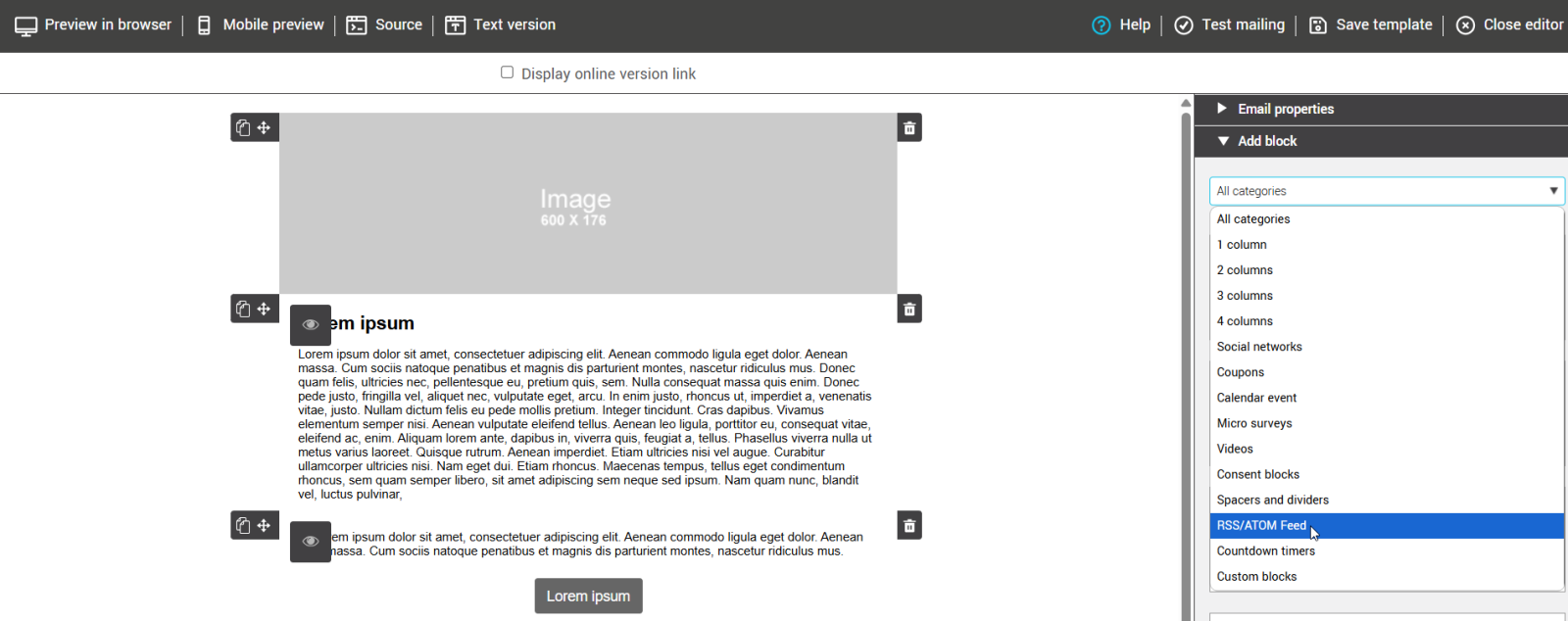
- There are two types of display for your RSS/ATOM feed: with or without images. Drag and drop the block in the space where you want it to appear in your template.
Note: If you choose a block with images, make sure your feed has images associated to your news, otherwise there will be a blank space in lieu of the image for each news. - Under the RSS/ATOM Feed properties section (in the side panel), enter the URL of your feed (make sure it is accessible and valid), the number of news you wish to display and, if necessary, one or more categories of your feed you wish to target for your mailing (this is optional, you can leave the field empty).
Note: To indicate more than one category, separate them with commas.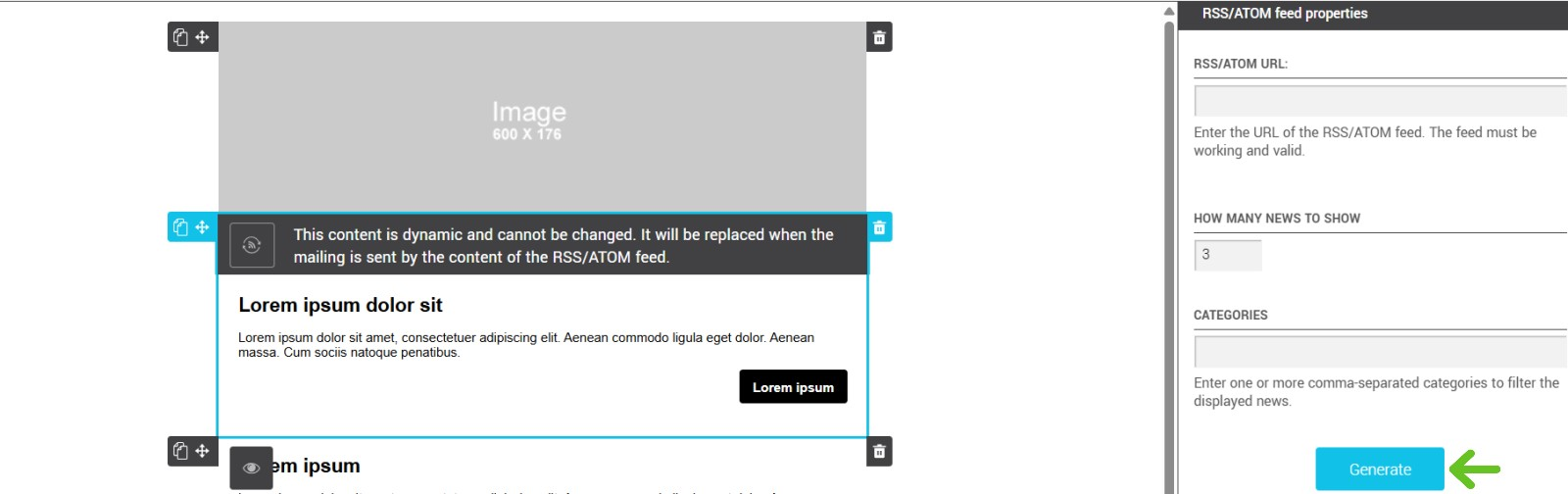
Click Generate.
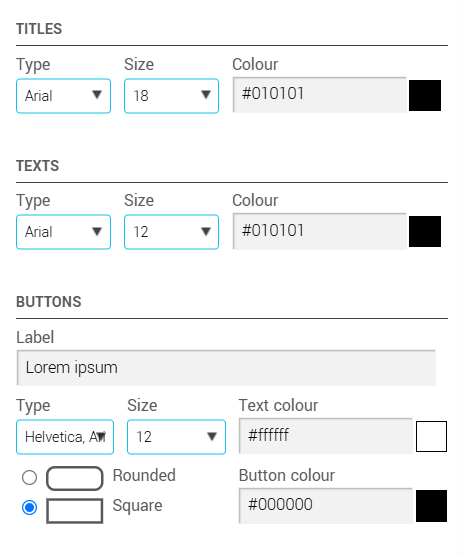
- You will also find in the RSS/ATOM Feed properties section your text and button properties. You will be able to select the font, size and color for the titles, texts and buttons that will be generated in your RSS/ATOM block. Don't forget to change the label of the buttons in your feed! The default "Lorem ipsum" label will not mean much to the person reading your email.
- As usual, don't forget to save and test your template!
We recommend you test your template with a complete mailing to a group used only for test purposes.
Frequently asked questions
How do I show only recent articles?
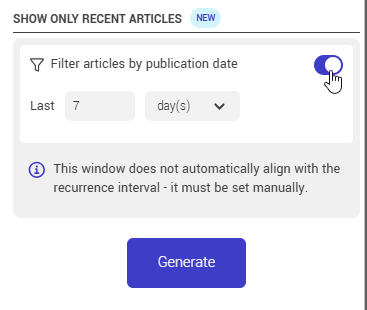
The publication date filter limits the block to recently published articles. It’s most useful in a recurring mailing, so the same news isn’t sent again from one mailing to the next.
- In your template, click your RSS/Atom block to select it.
- In the RSS/Atom feed properties panel, find the Show only recent articles section.
- Turn on the Filter articles by publication date switch. It’s off by default.
- After Show the last, enter a number and choose a unit: days, weeks or months. When you turn the filter on, it’s set to 7 days.
Good to know:
- The number must be a whole number of at least 1. The maximums are 365 days, 52 weeks or 12 months.
- Months follow the calendar. For example, 1 month back from April 22 is March 22.
- Articles older than the selected period aren’t shown, even if the maximum number of news items hasn’t been reached.
- Each RSS block has its own filter, so each block in the same template can use a different period.
- The filter is applied when the mailing goes out, before the maximum number of news items is applied.
- The period doesn’t adjust to how often a recurring mailing is sent. For a weekly mailing, set it to 7 days or 1 week yourself.
- If no articles fall within the selected period, the feed is considered empty (see the next section).
What happens if my feed is empty or unavailable at sending time?
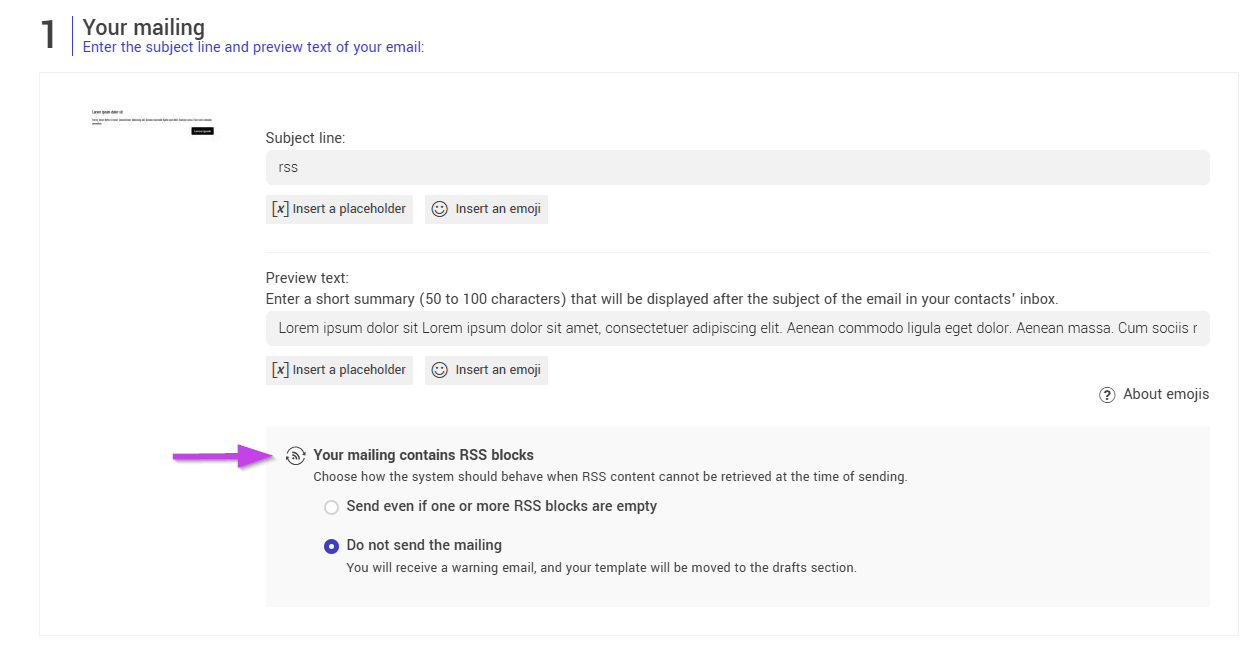
If your mailing contains at least one RSS/Atom block, a Your mailing contains RSS blocks section appears in step 1 of the mailing setup (Your email), below the preview text. This applies to both one-time and recurring mailings. Choose one of two options:
- Don’t send the mailing (selected by default): the mailing isn’t sent. You get a warning email, and your template is moved to your drafts.
- Send even if one or more RSS blocks are empty: the mailing goes out anyway. If the block has displayed content before, the most recent content is used. If the block has never had content, or if the date filter excludes every article, the block is removed from the email.
Good to know:
- If your mailing has several RSS blocks and Don’t send the mailing is selected, one empty or unavailable block is enough to stop the whole mailing.
- This section doesn’t appear if your template doesn’t contain any RSS blocks.
- Mailings scheduled before this option was added also follow the Don’t send the mailing behaviour.
- Before you confirm your mailing, the confirmation window checks your links, including your RSS/Atom feeds. Any feed that is unavailable or invalid appears in the RSS / Atom feeds section of the Link check. Fix it before you continue.
During my mailing, the content differs from the one generated in my template...why?
The content of your RSS/ATOM feed block is dynamic. It updates itself at the precise moment delivery of your email begins to show the most recent publications. This is why the content may not be exactly the same you generated while building your template.
My mailing with my RSS/ATOM feed was not sent...why? What do I need to do?
This mailing contained an RSS/Atom block that was empty or unavailable at the scheduled time, and the Don’t send the mailing option was selected (by you or by default). In this case:
- the mailing isn’t sent;
- a warning email goes to the account contact and all administrators, once for each mailing that isn’t sent;
- a copy of the mailing is saved in your drafts.
For a recurring mailing, the recurrence stays active and the next mailing goes out as scheduled. The mailing that wasn’t sent isn’t resent automatically. It appears with the Failed status on the recurrence details page.
To fix the problem and send the email:
- Check your RSS/Atom feed: the address must be valid and publicly accessible, and the feed must contain articles (see My RSS feed is empty or isn’t working).
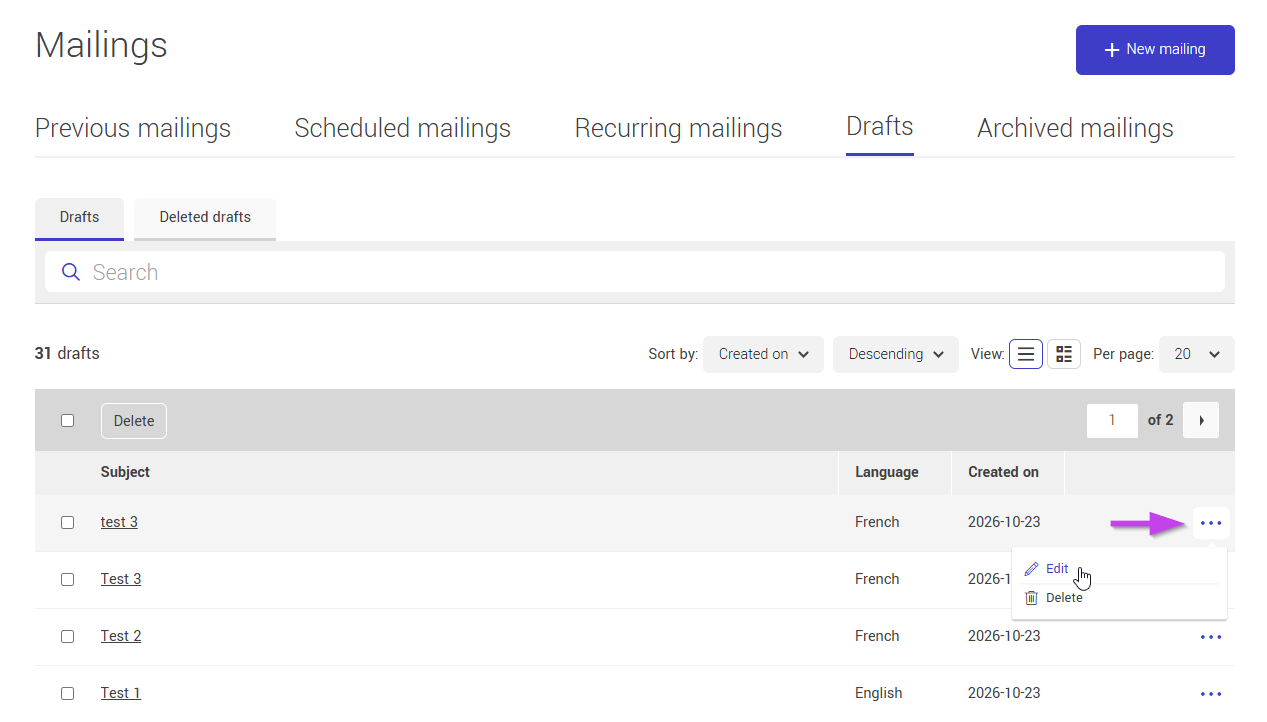
- In the Mailings menu, click the Drafts tab.
- Find the draft for this mailing, then click Edit in the actions menu (three-dot icon) on the right of its row.
- Click your RSS/Atom block to select it.
- In the RSS/Atom feed properties panel, update the feed URL, maximum number of news items, categories and date filter as needed.
- Click Generate to save your changes.
- Make any other changes you need.
- Click Continue and finish setting up the mailing, choosing the sending time again.
What happens if I have less news in my feed or category than the number I chose in my block properties?
We will only display the number of news available in your feed. The number you choose is a maximum: the system doesn’t add older articles to reach it. The same applies if you turned on the publication date filter: only articles published within the selected period are shown.
Why is my RSS feed empty or not working?
All the content in an RSS/Atom block comes from your feed, which is hosted on your website. If the feed is empty, temporarily unavailable or doesn’t meet RSS/Atom standards when the mailing goes out, the platform has nothing to display. Check the following:
- The feed address is valid and publicly accessible.
- The feed contains recent articles.
- If you use categories, they match the ones in your feed exactly.
- If the date filter is on, at least one article was published within the selected period.
- If your website blocks automated visits, it may refuse access to your feed. Ask the person who manages your website to check.
Once the feed is fixed, your next mailing will use the updated content.
Can I use an RSS feed in a recurring mailing?
Yes. The block content is refreshed every time the mailing is sent. To avoid sending the same news again, turn on the publication date filter and choose a period that matches how often the mailing goes out (for example, 7 days for a weekly mailing).
Learn more about recurring mailings >